 wenyongda
f1f3aac13b
wenyongda
f1f3aac13b
更新Nginx安装指南,添加源码编译和AlmaLinux安装方法
补充Linux系统监控文档,增加网络和PCI/USB设备信息
新增WSL2安装配置文档
完善Vim编辑器文档,增加安装和基础命令
扩展Linux软件安装文档,添加MySQL、Redis、Node.js等安装指南
260 lines
4.4 KiB
Markdown
260 lines
4.4 KiB
Markdown
---
|
||
title: WSL2
|
||
date: 2026-04-17 10:00:22
|
||
author: 文永达
|
||
tags: [WSL, Windows, Linux, 子系统]
|
||
categories: [操作系统, WSL]
|
||
---
|
||
|
||
# WSL2 (Windows Linux 子系统)
|
||
|
||
WSL2 是 Windows 的 Linux 子系统,允许在 Windows 上运行 Linux 环境,无需使用虚拟机。
|
||
|
||
---
|
||
|
||
## 安装
|
||
|
||
### 1. 启用 Windows 功能
|
||
|
||
打开控制面板 → 程序和功能 → 启用或关闭 Windows 功能,勾选"适用于 Linux 的 Windows 子系统"。
|
||
|
||
也可通过运行窗口快速打开:
|
||
|
||
```powershell
|
||
Win + R → 输入 appwiz.cpl → 回车
|
||
```
|
||
|
||

|
||
|
||
> 此步骤也可解决安装发行版时的报错:
|
||
> `错误代码: Wsl/InstallDistro/Service/RegisterDistro/CreateVm/HCS/HCS_E_SERVICE_NOT_AVAILABLE`
|
||
|
||
### 2. 安装 WSL
|
||
|
||
打开 Windows Terminal PowerShell:
|
||
|
||
```powershell
|
||
wsl --install
|
||
```
|
||
|
||
> 微软官方文档:[安装 WSL | Microsoft Docs](https://docs.microsoft.com/zh-cn/windows/wsl/install)
|
||
|
||
默认安装 Ubuntu 20.04 LTS 版。
|
||
|
||
### 3. 更改默认发行版
|
||
|
||
```powershell
|
||
wsl --install -d <Distribution Name>
|
||
```
|
||
|
||
### 4. 访问 Windows 磁盘
|
||
|
||
`/mnt` 目录下是 Windows 系统的挂载盘,可直接访问 Windows 磁盘文件。
|
||
|
||
---
|
||
|
||
## 迁移
|
||
|
||
将 WSL 发行版迁移到其他目录:
|
||
|
||
```powershell
|
||
wsl --manage Ubuntu-24.04 --move d:\ubuntu
|
||
```
|
||
|
||
---
|
||
|
||
## 导出
|
||
|
||
### 1. 查看当前分发版
|
||
|
||
```powershell
|
||
wsl -l
|
||
```
|
||
|
||
输出示例:
|
||
|
||
```powershell
|
||
适用于 Linux 的 Windows 子系统分发:
|
||
archlinux (默认值)
|
||
```
|
||
|
||
### 2. 停止运行中的 WSL
|
||
|
||
```powershell
|
||
wsl --terminate archlinux
|
||
```
|
||
|
||
### 3. 导出镜像
|
||
|
||
使用 `wsl --export` 命令将分发版导出为 `.tar` 文件:
|
||
|
||
```powershell
|
||
wsl --export archlinux E:\Backup\archlinux.tar
|
||
```
|
||
|
||
---
|
||
|
||
## 导入
|
||
|
||
使用 `wsl --import` 命令导入镜像:
|
||
|
||
```powershell
|
||
wsl --import <发行版名称> <安装位置> <tar文件路径>
|
||
```
|
||
|
||
---
|
||
|
||
## 通过 FinalShell 连接 WSL2
|
||
|
||
### 方式一:重装 SSH
|
||
|
||
#### 1. 删除并重装 SSH
|
||
|
||
```shell
|
||
apt-get remove --purge openssh-server
|
||
apt-get install openssh-server
|
||
rm /etc/ssh/ssh_config
|
||
service ssh --full-restart
|
||
```
|
||
|
||
#### 2. 修改配置文件
|
||
|
||
```shell
|
||
vim /etc/ssh/sshd_config
|
||
|
||
Port 6666 # 指定连接端口 6666
|
||
ListenAddress 0.0.0.0 # 指定连接的 IP
|
||
PasswordAuthentication yes # 开启密码认证
|
||
PermitRootLogin yes # 开启 root 用户登录
|
||
```
|
||
|
||
#### 3. 重启 SSH(每次重启 WSL 都要执行)
|
||
|
||
```shell
|
||
service ssh --full-restart
|
||
```
|
||
|
||
#### 4. 重新生成 host key
|
||
|
||
```shell
|
||
dpkg-reconfigure openssh-server
|
||
```
|
||
|
||
### 方式二:端口转发
|
||
|
||
#### 1. 查看 WSL 地址
|
||
|
||
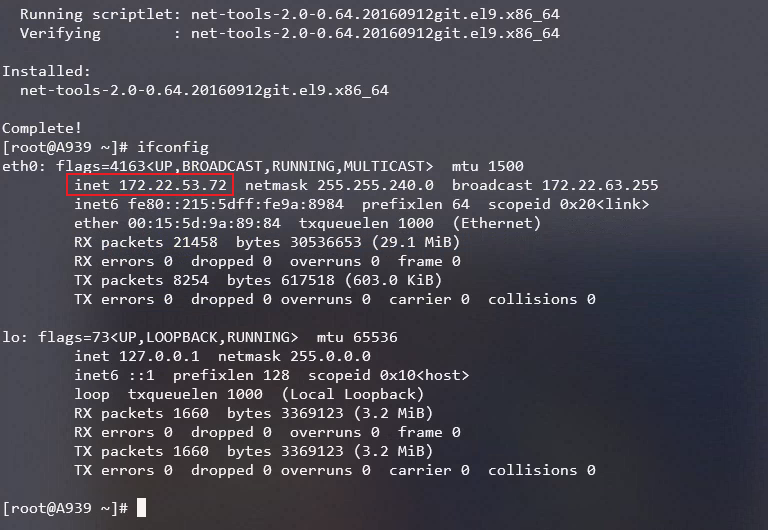
安装 `ifconfig` 工具:
|
||
|
||
```shell
|
||
apt install net-tools
|
||
```
|
||
|
||
查看 IP 地址:
|
||
|
||
```shell
|
||
ifconfig
|
||
```
|
||
|
||
|
||
|
||
#### 2. 端口转发
|
||
|
||
在 PowerShell 中执行,将 `[IP]` 和 `[PORT]` 替换为 WSL 的 IP 和 SSH 端口:
|
||
|
||
```powershell
|
||
netsh interface portproxy add v4tov4 listenaddress=0.0.0.0 listenport=2222 connectaddress=[IP] connectport=[PORT]
|
||
```
|
||
|
||
---
|
||
|
||
## 启用 systemctl
|
||
|
||
进入当前发行版,编辑 `/etc/wsl.conf`:
|
||
|
||
```shell
|
||
vim /etc/wsl.conf
|
||
```
|
||
|
||
内容如下:
|
||
|
||
```shell
|
||
[boot]
|
||
systemd=true
|
||
```
|
||
|
||
重启 WSL:
|
||
|
||
```powershell
|
||
wsl --shutdown
|
||
```
|
||
|
||
---
|
||
|
||
## 取消密码复杂度及长度限制
|
||
|
||
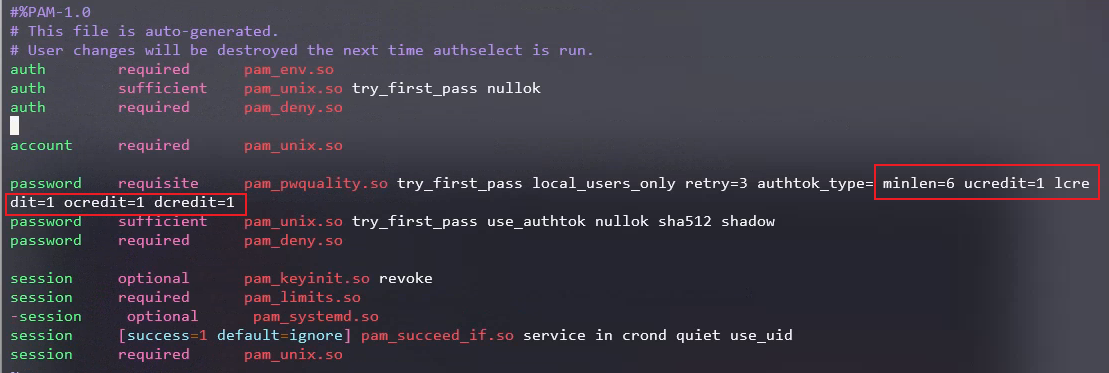
编辑 `/etc/pam.d/system-auth`:
|
||
|
||
```shell
|
||
vim /etc/pam.d/system-auth
|
||
```
|
||
|
||
修改密码要求:
|
||
|
||
```shell
|
||
password requisite pam_pwquality.so try_first_pass local_users_only retry=3 authtok_type= minlen=6 ucredit=1 lcredit=1 ocredit=1 dcredit=1
|
||
```
|
||
|
||
|
||
|
||
---
|
||
|
||
## WSL 玄学 Bug:SSH 连接找不到 nvidia-smi
|
||
|
||
本地正常,但通过 SSH 连接 WSL 时执行 `nvidia-smi` 找不到。
|
||
|
||
### 解决方式
|
||
|
||
在 `.bashrc` 中加入:
|
||
|
||
```shell
|
||
export PATH=/usr/lib/wsl/lib:$PATH
|
||
```
|
||
|
||
> 参考:[https://github.com/microsoft/WSL/issues/8794](https://github.com/microsoft/WSL/issues/8794)
|
||
|
||
---
|
||
|
||
## 常用命令
|
||
|
||
```powershell
|
||
# 查看所有分发版
|
||
wsl -l --all
|
||
|
||
# 查看正在运行的分发版
|
||
wsl -l --running
|
||
|
||
# 设置默认分发版
|
||
wsl -s <Distribution Name>
|
||
|
||
# 启动指定分发版
|
||
wsl -d <Distribution Name>
|
||
|
||
# 关闭指定分发版
|
||
wsl -t <Distribution Name>
|
||
|
||
# 关闭所有分发版
|
||
wsl --shutdown
|
||
|
||
# 卸载分发版
|
||
wsl --unregister <Distribution Name>
|
||
|
||
# 更新 WSL
|
||
wsl --update
|
||
|
||
# 查看状态
|
||
wsl --status
|
||
|
||
# 查看版本
|
||
wsl --version
|
||
``` |